Creative tool guide
What is Dzine AI used for? Creative tasks explained
Dzine is associated with AI-assisted visual creation. This guide separates the creative tasks people may explore from the decisions and checks that still need a person.
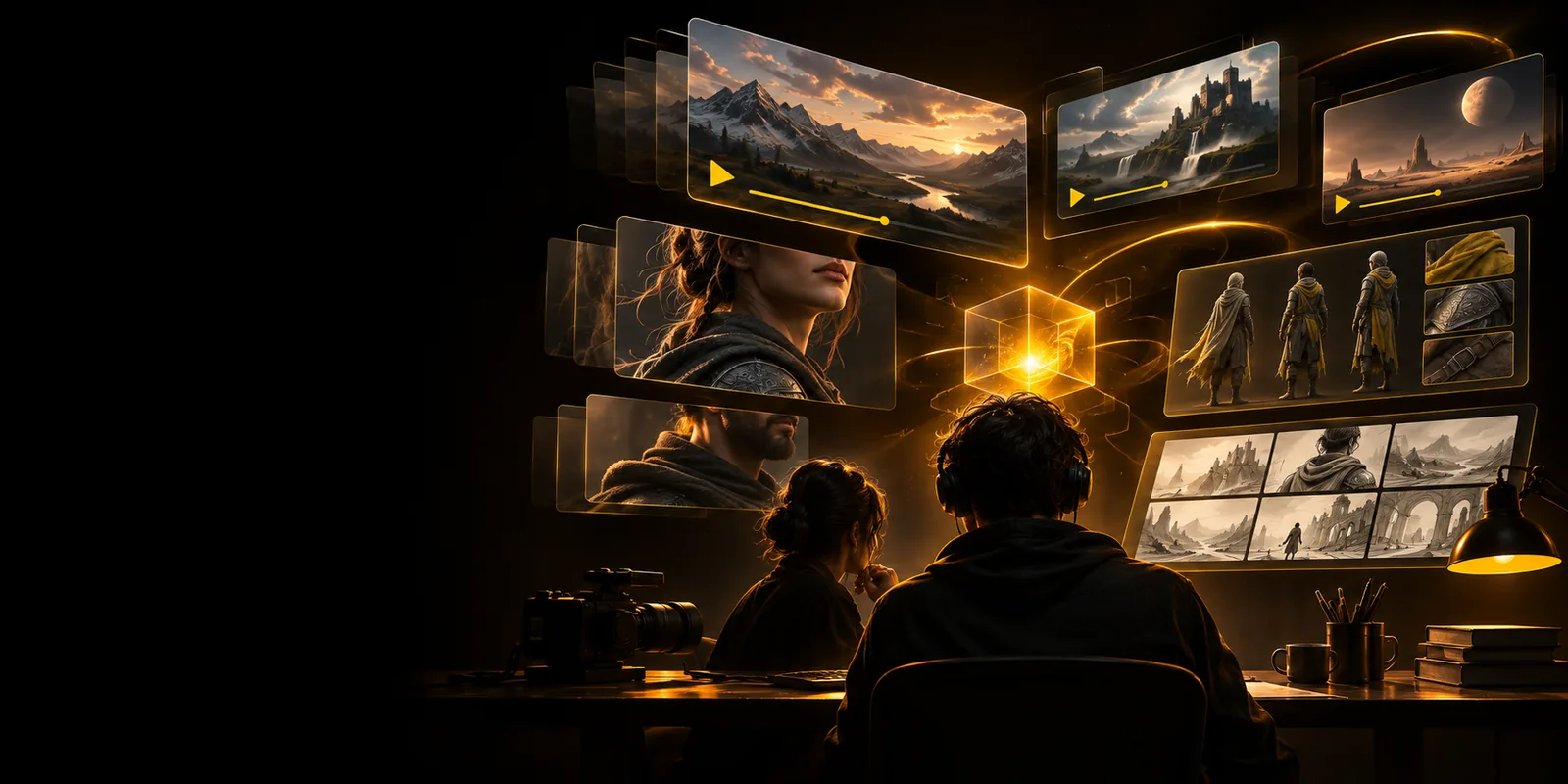
One-line definition
Dzine is a visual-creation platform people investigate when they want to develop image concepts, edit visual material, or explore motion from imagery. The best starting point is a specific creative goal, not an assumption that every visual task uses the same workflow.
How it works
A useful mental model is to supply an idea or source image, inspect the visual result, and refine it against your brief. That process has limits worth checking before you commit to an output.
-
This guide cannot create an image
The page explains possible uses of Dzine; it is not the editor and cannot accept an upload or return a generated file. Reading about a workflow is different from running one.
WorkaroundOpen a creative tool when you are ready to test a prompt or image.
-
It cannot confirm your available controls
Features, access conditions, and export choices can change. A task described here does not establish that a particular control is available to every visitor.
WorkaroundCheck the current product interface and its published terms before relying on a feature.
-
It cannot guarantee a finished asset
AI-assisted visuals may need corrections to composition, text, identity, or consistency. A promising first result is not automatically suitable for publication or client delivery.
WorkaroundReview the output against your brief and revise or edit it as needed.
What it can and cannot do
Use this short workflow to distinguish visual exploration from the human judgment needed to finish a project.
-
1
Set a visual objective
Decide whether you need a new image concept, a change to an existing image, or a motion-oriented experiment. Specify the subject, composition, intended audience, and any visual references you are permitted to use.
-
2
Try and compare directions
Explore the relevant Dzine workflow and compare results against the objective rather than judging the first output in isolation. Keep track of which changes help; generation can suggest directions, but it cannot decide which direction serves your message.
-
3
Review before use
Inspect details at the size and in the context where the work will appear. Check accuracy, permissions, legibility, and visual consistency yourself; an AI tool cannot take responsibility for those decisions.
Who uses it
Explore a visual idea
Dzine may be relevant to a designer testing compositions, a marketer sketching campaign imagery, or a creator exploring a scene before committing to production. Each starts with a different brief: the designer may compare styles, the marketer may assess whether an image communicates clearly, and the creator may look for a workable visual direction. None can skip reviewing the result for accuracy and rights. If you want to try a creative tool rather than continue reading, the button opens a separate visual platform; it is not a link to the official Dzine editor.
Explore visual creation- Start with a defined visual brief
- Compare results with your intended use
- Check the final asset before sharing
FAQ about Dzine AI
People look to Dzine for AI-assisted visual creation, including developing image ideas and exploring ways to change visual material. The appropriate workflow depends on whether your starting point is a concept, an existing image, or a motion idea. Check the current interface for the controls available to you.
It can be useful when exploring a direction, but a result should be assessed against the requirements of the final use. Review details, readability, and permissions before treating any AI-assisted visual as a finished asset.
An existing image can give a visual project a clearer starting point than a description alone. Decide what you need to preserve or change, then check whether the current Dzine workspace offers a suitable image-based workflow.
That depends on whether you need to explore visual ideas, work from an existing image, or produce a specific motion deliverable. Define the required result first, then verify the available workflow and output choices rather than assuming an image task and a video task are interchangeable.