Motion workflow
Create with a dzine ai video generator
The dzine ai video generator is a focused route for developing motion from a visual idea. Start with a reference, describe the movement you want to explore, and review the resulting clip as a concept rather than assuming every detail will be perfect.
Related routes
Make a still image feel alive
Choose the route that matches your starting point: a still image, an existing clip, or the wider creative workspace.
How it works
Three motion-building mechanisms
A useful result depends on separating the visual source, the movement brief, and the review pass.
-
1
Anchor the scene
Begin with a clear image or visual concept. The stronger the subject, framing, and focal point, the easier it is to judge whether the motion supports the original idea.
-
2
Describe the movement
State what should move, how it should move, and what should remain stable. Camera direction, environmental motion, and restrained verbs usually make a more testable brief.
-
3
Review the clip
Check subject consistency, unwanted deformation, pacing, and whether the action reads clearly. Keep the useful take, then revise the brief when the result misses the intent.
Practical sequence
Step-by-step from image to clip
Treat each generation as a reviewable visual draft: define the source, request one clear motion idea, and compare the outcome with the brief.
- 1 Start from one visual reference
- 01 source
- 2 Separate subject action from camera movement
- 02 motion layers
- 3 Inspect coherence, pacing, and unwanted changes
- 03 review checks
Output view
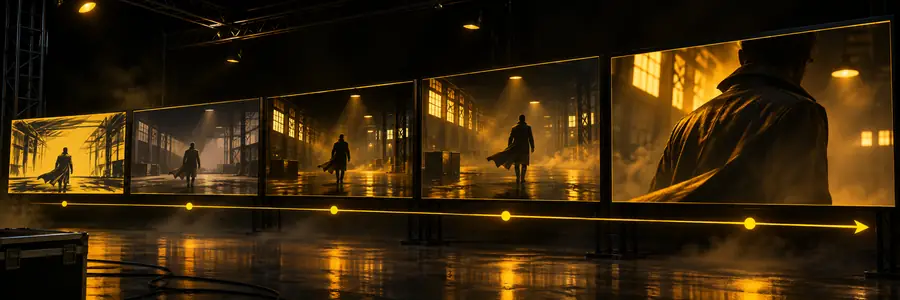
Before and after: the visual change
The reference establishes the scene; the generated result tests whether the requested movement carries that scene forward.
- Reference image
- Motion concept
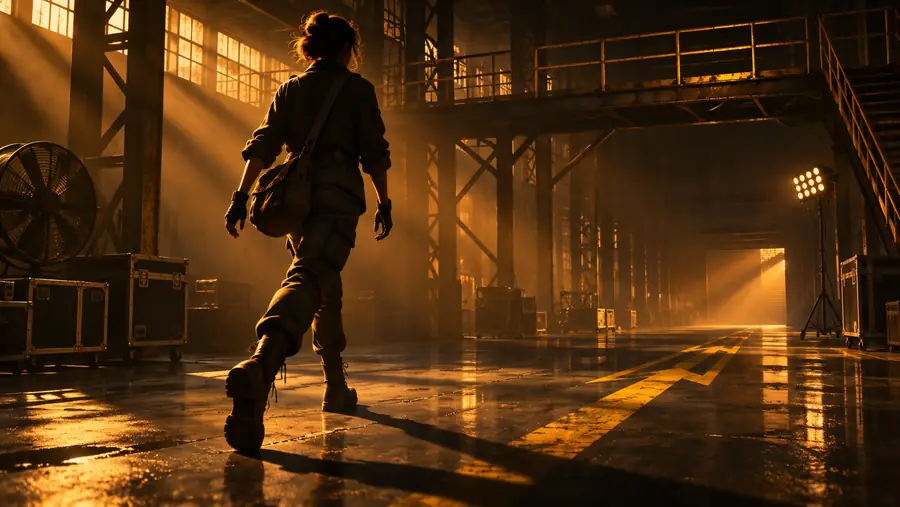
Compare the subject, movement, and visual continuity rather than judging motion alone.
Use it carefully
Limits and edges
A generated clip is a visual draft, not a guarantee that every object, action, or frame will remain exact.
-
Fine details may drift
Faces, hands, small text, and intricate patterns can change as the scene moves.
WorkaroundUse a simpler reference or crop the brief around the most important subject.
-
Motion can be overinterpreted
A broad instruction may produce movement in objects that were meant to stay still.
WorkaroundName the moving element and explicitly describe the background or subject as stable.
-
Long actions may lose continuity
A complex sequence can become less coherent when several changes happen at once.
WorkaroundBreak the idea into shorter visual beats and review each result before extending it.
-
It is not a finishing guarantee
A promising concept may still need editing, selection, or additional production work before publication.
WorkaroundTreat the output as an iteration aid and keep a human review step.
At a glance
Reference image and generated clip
These two sides serve different jobs: one defines the visual foundation, while the other tests how that foundation behaves in motion.
Reference image
Generated video concept
Primary role
Reference image
Sets the scene and visual identity
Generated video concept
Explores movement within the scene
Main input
Reference image
A still visual or image idea
Generated video concept
The reference plus a motion brief
What to describe
Reference image
Subject, framing, style, and focus
Generated video concept
Action, camera motion, pace, and stability
Best review question
Reference image
Does the image communicate the intended scene?
Generated video concept
Does the movement preserve the intended scene?
Common risk
Reference image
An unclear or crowded starting point
Generated video concept
Drift, deformation, or unintended movement
Useful next step
Reference image
Clarify the visual anchor
Generated video concept
Refine the motion brief and compare another take
Ready to explore
Test one clear motion idea
Bring a strong visual reference and a specific movement brief into the Dzine workflow. Start with one scene, inspect the result closely, and use what you learn to guide the next iteration.
Open the video generator- Start with a focused visual concept
- Describe what moves and what stays still
- Review the result before sharing it
Video generator FAQ
Frequently asked questions
It is used to explore motion from a visual idea, such as animating a still scene or testing a camera movement. The result is best treated as a concept that should be reviewed for continuity and accuracy.
The workflow is designed around using a visual reference and describing the movement you want to see. A clearer subject and a more specific motion brief make the result easier to evaluate.
Describe the subject, the action, the camera movement, and what should remain stable. Keep the first brief focused on one main motion so you can tell which part of the result needs revision.
No result should be assumed to preserve every detail perfectly. Faces, hands, text, patterns, and complex actions may drift, so inspect the clip and adjust the source or prompt when continuity matters.
No. A video generator explores new motion from a visual idea, while a dzine ai video upscaler is intended for working with an existing clip. Choose the route based on whether you are creating motion or improving footage you already have.